What Does ADF Mean on a Scanner? Made Simple
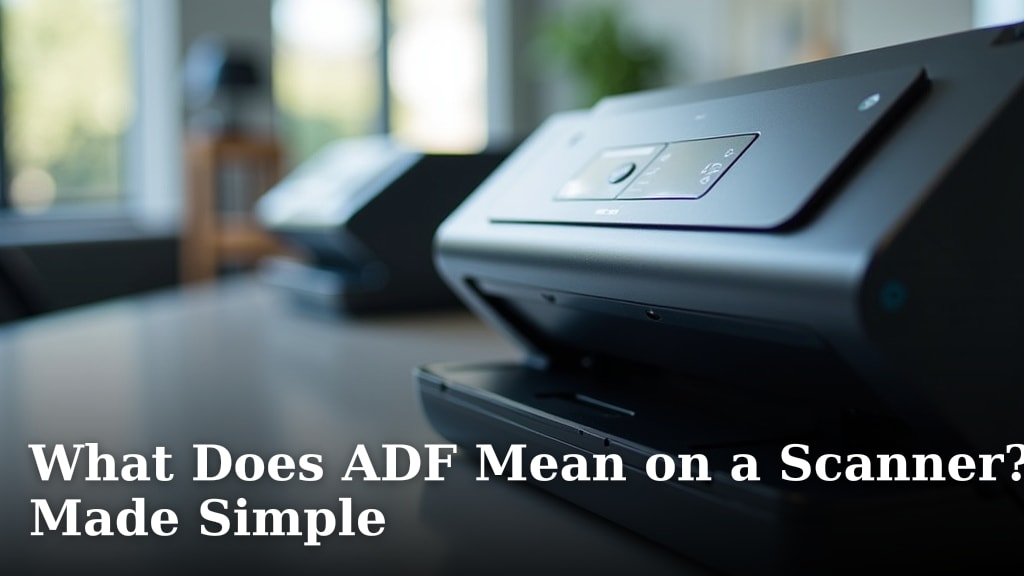
ADF stands for Automatic Document Feeder. It is a part of your scanner or all-in-one printer that lets you scan multiple pages automatically, one after another. You just load a stack of paper into the feeder, and the machine pulls each sheet through for you.
This simple feature is a huge time-saver for your home office. Instead of placing each page on the scanner glass by hand, you can handle multi-page documents quickly. We found that for anyone regularly scanning paperwork, an ADF-equipped scanner is a practical and efficient tool.
- What it is: An ADF is a tray on your scanner that holds multiple sheets of paper.
- Why it matters: It scans a whole stack of documents automatically, saving you effort and time.
- Best for: Scanning multi-page reports, receipts, or contracts without manual page turning.
- Limitation: It typically handles standard paper sizes and thickness, not fragile or odd-shaped items.
- How to use: Place your paper in the tray, select the scan option on your computer, and let it work.
Below, we break down exactly how this handy feature works and whether it’s the right choice for your needs.
Understanding the Automatic Document Feeder on Scanners
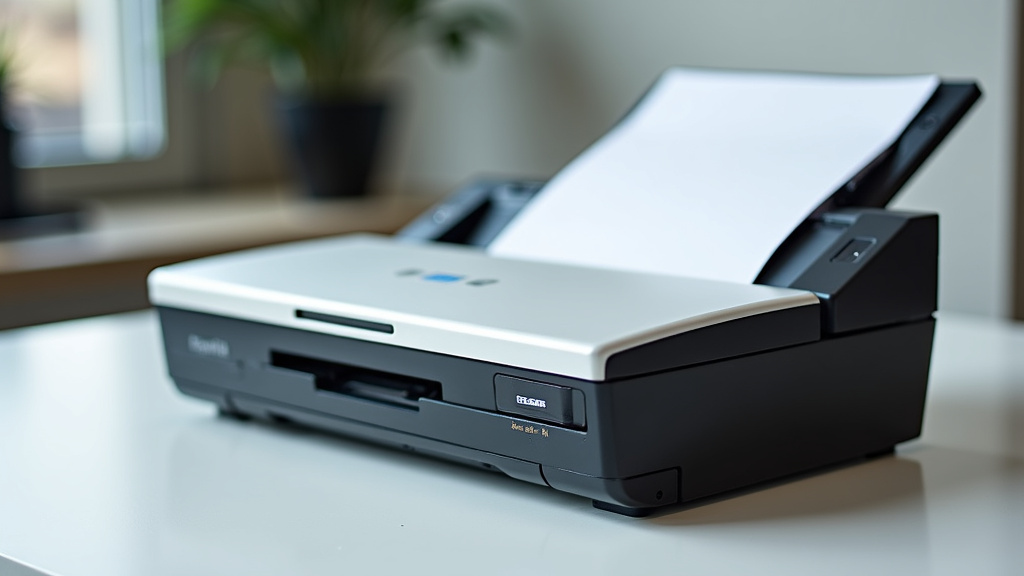
An ADF is the tray component on a scanner or all-in-one printer that feeds paper through automatically. It eliminates the need to lift the lid and place each page by hand. You can simply load a stack of documents and walk away.
How the ADF Mechanically Works
The mechanism is simpler than you might think. When you press “scan,” rubber rollers grab the top sheet from the tray. They pull the paper along a guided path, past the scanner’s imaging sensor. Once the scan is complete, the sheet is ejected into an output tray. The process repeats until your entire stack is done.
Sensors inside the ADF detect the paper’s leading and trailing edges. This tells the scanner when a page is fully fed through. It also prevents misfeeds by checking for paper jams in real time. The whole process feels like watching a tiny, efficient printing line work backward.
Straight-Through vs. U-Turn Path Designs
Most home ADFs use a U-turn path. The paper enters the tray, loops 180 degrees internally, and exits near the input. This design is compact but can stress curled or thick paper.
Straight-through path feeders are found on higher-end models. Paper enters one end and exits the other in a straight line. This method is gentler on documents. It is better for fragile paper, cardstock, or items that can’t bend easily.
Single-Pass vs. Duplex ADFs
A key feature to look for is duplex scanning. A single-pass duplex ADF scans both sides of a page in one motion. It uses two imaging sensors. The paper goes through once, and both sides are captured. This is much faster for double-sided documents.
An older or less common type is the manual duplex ADF. It scans the first side, then pulls the paper back in to scan the reverse side. This doubles the time and increases jam risk. We found that modern single-pass models are the standard for efficiency.
Types of Scanners with an Automatic Document Feeder
You will typically find an ADF in two main scanner categories. Understanding this helps you choose the right device for your home office.
Sheet-Fed Document Scanners
These scanners are dedicated to the ADF. They do not have a flatbed glass for placing books or thick items. Their sole purpose is to scan stacks of loose paper quickly. They are compact, fast, and perfect for a paper-heavy workflow. Think of them as the fast-food drive-through of scanning—designed for speed and volume.
All-in-One (AIO) Printers with ADF
Most modern home office printers include a flatbed scanner and an ADF. This is a versatile 3-in-1 machine. You can scan a single photo on the glass or a 50-page report in the ADF. This is the most common solution for households needing both functions. However, the ADF speed on an AIO is often slower than a dedicated sheet-fed scanner.
| Feature | Dedicated Sheet-Fed Scanner | All-in-One Printer with ADF |
|---|---|---|
| Primary Use | High-volume document scanning | Printing, copying, scanning, and faxing |
| ADF Speed | Typically faster (30+ pages per minute) | Moderate (often 15-30 pages per minute) |
| Flatbed Scanner | No (usually) | Yes |
| Space Required | Smaller footprint | Larger, needs space for paper trays |
| Best For | Scanning receipts, contracts, and reports in batches | General home office tasks and occasional scanning |
The Real Benefits and Limitations of an ADF
An ADF is a powerful tool, but it has clear strengths and weaknesses. Knowing both helps you set realistic expectations.
Top Advantages of Using an ADF
The benefits go beyond just saving time. Here is what we found matters most to users:
- Time Savings: Scans a 20-page document in under a minute, versus 10+ minutes manually.
- Effort Reduction: No repetitive lifting and aligning of the scanner lid.
- Consistency: Automated feeding produces evenly aligned digital files.
- Productivity: You can load the scanner and handle other tasks while it works.
- Duplex Capability: Auto-duplex models scan both sides without flipping pages.
Key Limitations You Should Know
The ADF is not magic. It has rules it must follow. We often see frustration when these limits are not understood.
- Paper Condition Matters: Crumpled, torn, or sticky notes can cause jams.
- Size and Thickness Restrictions: Most ADFs handle standard letter (8.5″ x 11″) or legal size. They struggle with thick cardstock, envelopes, or small receipts.
- No Original Book Binding: You cannot scan pages from a bound book or magazine in an ADF.
- Potential for Misfeeds: Thin or static-charged paper may pull multiple sheets at once.
Choosing the Right ADF Scanner for Your Needs
Should you rush out and buy the first scanner with an ADF? Not quite. The right choice depends on your specific documents and volume.
Key Specifications to Compare
When shopping, focus on these technical specs. They directly impact performance.
- Paper Capacity: The tray might hold 20, 50, or 100 sheets. Match this to your average batch size.
- Scan Speed: Measured in pages per minute (PPM). 20 PPM is decent for home use. 40+ PPM is for heavy-duty needs.
- Duplex Scanning: Always check if it scans both sides in one pass. This is a huge time-saver for double-sided documents.
- Daily Duty Cycle: This is the recommended maximum pages per day. Exceeding it can cause premature wear.
Questions to Ask Before You Buy
Answer these honestly to guide your decision. We found this simple method prevents buyer’s remorse.
- What is the thickest paper I need to scan? (e.g., ID cards, cardstock)
- How many pages do I scan in a single session? (e.g., 10, 50, 200)
- Do most of my documents have two sides?
- Is space a concern in my home office?
Consider Your Document Types
Your primary documents should drive your choice. For a home office scanning mostly insurance forms and tax returns, a mid-range AIO with an ADF is sufficient. For a real estate agent scanning hundreds of contracts weekly, a dedicated, high-speed sheet-fed scanner is a wiser investment.
Getting the Most from Your ADF: Usage Tips
You have the scanner. Now, how do you use it correctly to avoid jams and get clear scans? It starts with how you load the paper.
The Proper Way to Load Paper
Think
Conclusion
An Automatic Document Feeder (ADF) is a time-saving feature that lets you scan multiple pages automatically. We found it’s perfect for home offices with regular document scanning, like reports or contracts. It reduces manual effort, but remember it works best with standard paper and may struggle with fragile items. If you handle multi-page documents often, an ADF-equipped scanner is a smart choice. To get started, assess your document types and volume, then choose a model that fits your needs.
Frequently Asked Questions
What is the best way to load paper into an ADF?
Place your paper stack neatly into the tray, ensuring edges are aligned. Fan the sheets to