Can a Printer Scan Documents? The Basics
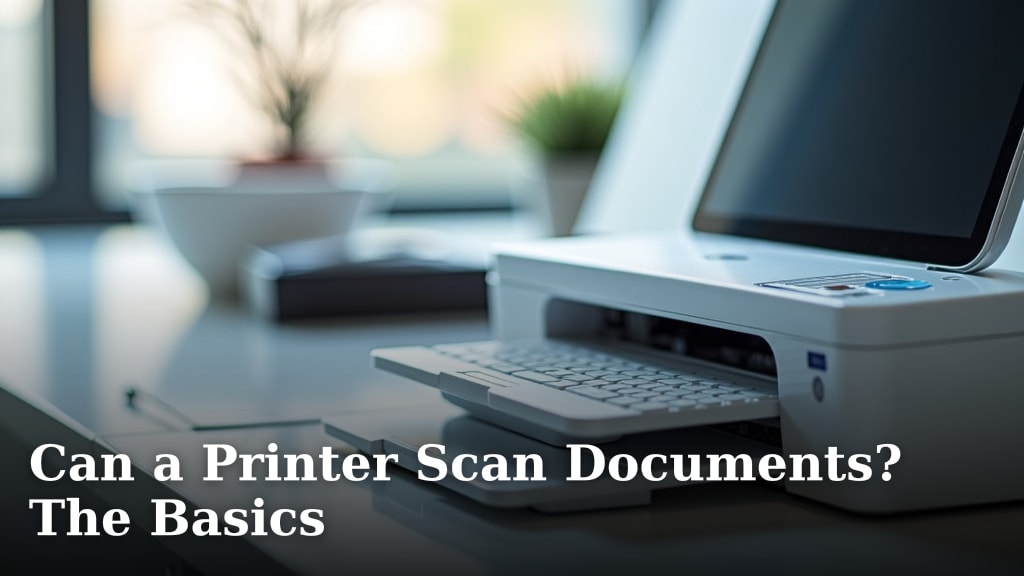
Yes, most modern printers can scan documents, as long as it is an all-in-one or multi-function model. This key feature allows you to digitize paper files, photos, and receipts directly from your home or office.
However, not every printer you buy will have a scanner built in. Basic, print-only models are still common. We found that to scan, you need to look for a device specifically labeled as a multi-function printer or check the product specifications carefully.
- Yes, many printers include scanning capabilities.
- You need an “all-in-one” or “multi-function” printer model.
- Check the specs for a scanner or a flatbed glass area.
- Basic print-only printers cannot scan documents.
- The process is usually simple once you have the right device.
Below, we explain how-to tell if your printer can scan and walk through the basics of the straightforward process.
How to Check if Your Printer Has a Scanner Built In
First, you need to know if your specific device is capable of scanning. The answer lies in its design and labels. A scanner is a physical component, so you can often see it.
Look at the top of your printer. Most scan-enabled models have a flatbed glass area like a tiny window. You lift a lid to place documents on the glass. This is the classic sign of a scanner.
If your printer is just a box that takes paper in and prints it out, it likely lacks this feature. The product box or manual should say “all-in-one” or “multi-function.” This is your clearest clue.
Physical Signs Your Device Can Scan
Check the control panel on your printer. Does it have a “Scan” button or an icon that looks like a document? That’s a strong indicator. Many models have a small screen with scanning options.
Some printers have a separate document feeder on top. This is for scanning multiple pages at once. It’s called an Automatic Document Feeder (ADF). If you see a stack of paper feeding through a slot, you likely have a powerful scanner.
Checking Your Printer Model Online
Unsure about the model name? Look on the front or back for a brand name like HP, Canon, or Epson, plus a model number. Search that number on the manufacturer’s website.
The product page will list all features. Look for words like “scan,” “copy,” or “AIO” (All-In-One). We found that a quick online search of your model number is often the fastest way to get a definitive answer.
Understanding the Two Main Types of Printer Scanners
Not all scanners work the same way. Knowing the type helps you understand what to expect from your device. The technology impacts both speed and quality.
Flatbed Scanners: The Common Standard
This is the most common type found in home printers. It works like a copy machine. You lift the lid, place your document face-down on the glass, close the lid, and press scan.
It’s great for photos, books, or single sheets. The process is gentle and preserves delicate items. Most users find this method simple and reliable.
Document Feeder Scanners: For Busy Workflows
An ADF scanner is built for volume. You place a stack of papers in a tray, and the machine pulls each sheet through a scanner one by one. It’s ideal for office paperwork.
Many modern all-in-one printers include both a flatbed and an ADF. This gives you flexibility for different tasks. We found that offices often prefer models with an ADF for efficiency.
A Simple Step-by-Step Guide to Scanning Your First Document
Once you confirm your printer can scan, the process is usually straightforward. Think of it like taking a digital photo of your paper. It’s a friendly, one-two-three kind of task.
Getting Your Document Ready
Prepare your paper. Make sure it’s clean and not crumpled. Remove any staples or paper clips. This prevents jams and ensures a clear image.
For photos, be extra careful. Lay them flat on the glass. Close the lid gently. The goal is to avoid shadows or glare that could ruin the scan.
Using Your Printer’s Software or Controls
Open the scanning software on your computer. Many printers come with a brand-specific app, like HP Smart or Canon PRINT. This app will guide you.
You can also often scan from the printer’s own control panel. Press the “Scan” button, choose your settings, and press “Start.” The printer will do the work.
Choosing Your Scan Settings
Before you scan, you’ll pick a few options. The most important is the file type. Most people choose PDF for documents or JPEG for photos.
You might also select the scan resolution, measured in DPI (dots per inch). For basic documents, 300 DPI is plenty. For high-quality photo prints, you might choose 600 DPI.
Where Does the Scanned File Go?
Your scan will save to your computer by default. It usually goes to a folder called “Documents” or “Scans.” You can often change this location in the settings.
Some printers let you scan directly to an email, a cloud service, or a USB drive. This is very handy for sharing files quickly without extra steps.
What Can You Actually Scan? Common Use Cases
So, what’s this feature good for? It’s not just for business papers. You can digitize many kinds of physical items. Here are some common examples.
- Important documents: Tax forms, contracts, and receipts.
- Personal photos: Old family pictures to preserve digitally.
- Handwritten notes: Ideas or sketches from a notebook.
- Books or magazines: Specific pages you want to save.
- Identification cards: Driver’s licenses or passports for secure digital copies.
Think of your scanner as a digital filing cabinet. It turns clutter into organized files on your hard drive. This can make your life much simpler.
How to Know Which Scanner Is Right for You
When shopping, your needs should guide your choice. A casual home user has different needs than a small business owner. Let’s break it down.
For Home and Personal Use
You likely need a basic flatbed scanner. A model with a resolution of 300-600 DPI is fine. Speed isn’t a huge factor for occasional scanning.
Look for models with good software that’s easy to use. Simple one-click scanning is a great feature. Many experts say user-friendliness is key for home devices.
For Small Office or Home Office (SOHO)
Consider an all-in-one with an Automatic Document Feeder (ADF). This saves time when handling stacks of paper. Speed, measured in pages per minute (PPM), becomes more important.
Also, check for reliable networking. Can it scan to a shared folder or email directly? We found that these workflow features can significantly boost productivity.
Comparison Table: Home vs. Office Scanner Needs
| Feature | Home Use Priority | Office Use Priority |
|---|---|---|
| Scanner Type | Flatbed is sufficient | Flatbed + ADF for volume |
| Speed | Less critical | High (look for 10+ PPM) |
| Resolution (DPI) | 300-600 DPI for docs | 300 DPI for docs, 600+ for photos |
| Key Software Feature | Simple one-click scan | Scan-to-email, cloud integration |
| Typical Budget | Lower cost is a major factor | Investment in durability & features |
Troubleshooting Common Scanning Problems
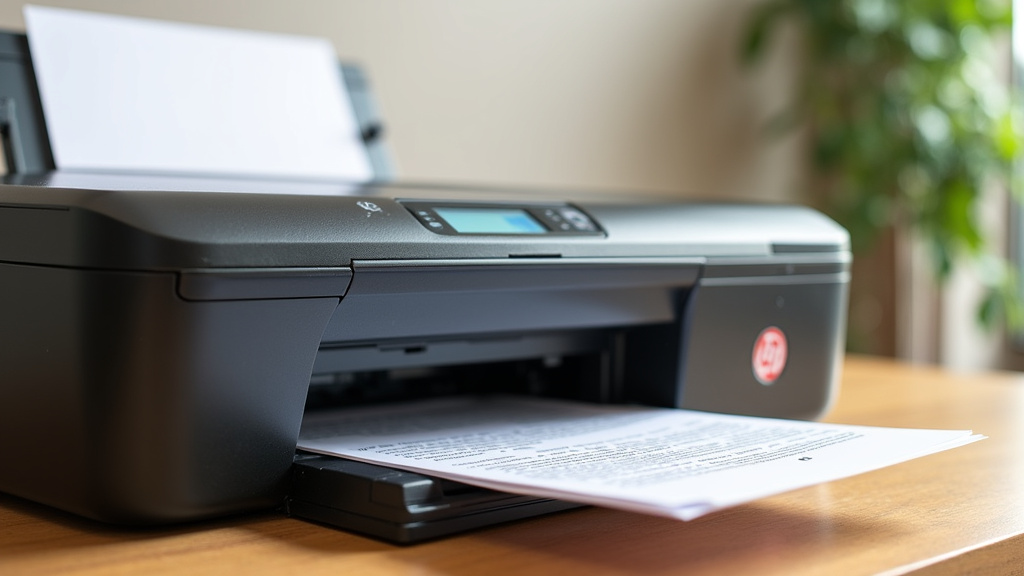
Sometimes, things don’t work perfectly. A scan might be blurry, or the printer might not respond. Don’t worry. These are common issues with simple fixes.
Why Is My Scan Blurry or Dark?
A blurry scan usually means movement or a dirty glass. Make sure the document is flat and still. Clean the scanner glass with a soft, lint-free cloth.
Dark or shadowed scans often happen from the lid not closing properly. Light gaps can cause this. You can sometimes adjust brightness in the scan settings.
The Printer Won’t Scan. What Should I Do?
First, check the connection. Is the printer turned on and connected to your computer or Wi-Fi? A loose cable or lost connection is a common culprit.
Next, restart everything. Power off the printer and computer, wait a minute, and turn them back on. This old trick resolves many tech hiccups.
Is a Printer Scanner Good Enough, or Do You Need a Dedicated Scanner?
For most people, a built-in printer scanner is perfectly fine. It’s convenient and saves space. It handles everyday documents without fuss.
However, if you need to scan thousands of photos or very large documents, a dedicated scanner might be better. These devices often have higher resolution and specialized features. We found that professional photographers or archivists often prefer dedicated models for their work.
Checklist: Quick Guide to Getting Your Printer Scanning
Use this simple list to get started. It covers the essentials for a successful scan.
- Verify your printer is a multi-function or all-in-one model with a scanner.
- Locate the scanner glass or document feeder on your device.
- Install or open the printer software on your computer.
- Prepare your document: remove staples and lay it flat.
- Choose the right settings: file type (PDF/JPEG) and resolution (DPI).
- Scan, save, and check your digital file to ensure it’s clear.
This checklist ensures you cover all the bases. Remember, the first scan might take a little practice. But it quickly becomes second nature. Your printer scanner is a powerful tool for organizing your paper world.
Conclusion
So, your printer likely scans if it’s an all-in-one or multi-function model. You learned how to spot a scanner by its flatbed glass or document feeder. The process is straightforward once you know your device. We found that the right settings for file type and resolution are key. Check your printer’s label or model number to be sure. For most home and office tasks, a built-in scanner is all you need.
Next, grab a document, clean the scanner glass, and try a simple scan. See how the digital file turns out. It’s a quick way to organize your papers. Your printer scanner is a handy tool you already own.
Frequently Asked Questions
Do all-in-one printers also photocopy?
Yes, they usually do. Most all-in-one printers with a scanner can also make physical copies. The scanning function is the first step in the copying process. You can often do both from the same control panel.
Can I scan without turning on my computer?
Some printers allow this. If your model has a small screen and built-in memory, you might scan directly to a USB drive or email. Check your printer’s manual or menu for “scan to” options. Otherwise, you’ll need a connected computer or mobile device.
Is scanning a document the same as taking a photo with my phone?
They are similar, but not identical. A printer scanner usually produces a cleaner, more even image of a document. Phone photos can have shadows or uneven lighting. For official documents, a printer scan is often better. For a look at phone-based alternatives, our scanning apps guide explains the possibilities.
How do I get the scanned file onto my phone?
You have a few good options. Many printers let you scan directly to cloud services like Google Drive or Dropbox. You can then access the file from your phone’s app. Some printers also support scanning to email, which you can open on your device.
My scanner isn’t working. Could the software be the problem?
It’s possible. Software glitches are common. Try restarting your computer and printer first. If that fails, uninstall and reinstall the printer software from the manufacturer’s website. We found this fixes many connection issues.