What Is a Document Feeder? In Plain English
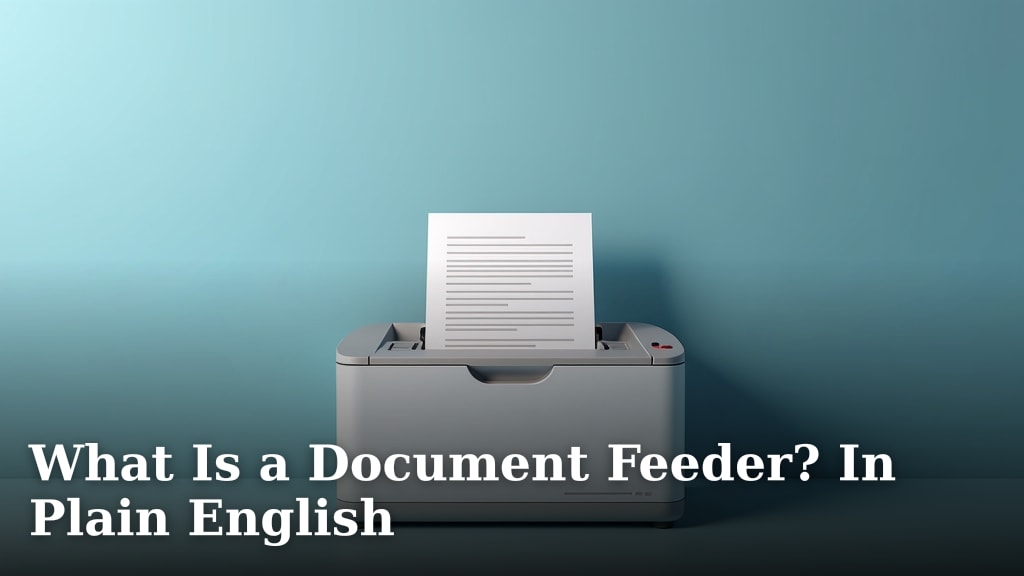
A document feeder is a scanner or printer accessory that pulls in a stack of paper and feeds pages through one by one. This automated process scans or copies multiple pages automatically, so you don’t have to place each sheet by hand on the glass.
Think of it as the time-saving helper for your office machine. We found that devices with a document feeder scan or copy many pages much faster than manual methods. It’s a feature that saves you time and hassle for big jobs like digitizing reports or making copies of long documents.
- A document feeder is an automatic paper handler for scanners and multifunction printers.
- It has two main types: ADF (for loose pages) and a flatbed with a sheet-fed option.
- The biggest benefit is speed and convenience for multi-page documents.
- It eliminates the tedious work of placing each page manually.
- Consider paper size limits and jam rates when choosing a model.
Below, we’ll walk through exactly how a document feeder works and the different types you might find, so you know what to look for.
How a Document Feeder Actually Works
A document feeder is a clever little machine. It uses rollers and sensors to grab a stack of paper from a tray. One page at a time, it pulls the sheet into the scanner or printer. After it’s scanned or copied, the page is moved to an output tray.
The process is fully automatic once you load the paper. You press “start,” and the feeder does the rest. No babysitting required. We found this automation is what saves you from standing by the machine, placing each page on the glass.
The Journey of a Single Page
Let’s follow one sheet of paper on its quick trip. First, the pickup roller grabs the top page from your stack. Next, separation pads ensure only one page goes through at a time. Then, the page slides over the imaging sensor. Finally, the scanned image is sent to your computer or a copy is printed.
This whole trip takes only a few seconds. For a 50-page report, that adds up to massive time savings compared to manual scanning.
The Two Main Types You’ll Encounter
Not all document feeders are created equal. You’ll run into two primary designs. Knowing the difference helps you pick the right tool for your job.
1. The Automatic Document Feeder (ADF)
This is the most common type you’ll see on office copiers and home all-in-one printers. An ADF is built into the top of the machine. You lift a lid, place your stack of loose pages in the feeder tray, and close it.
The ADF is perfect for standard-sized documents. Think reports, contracts, and multi-page forms. It handles the job from start to finish without you touching the glass.
Key Features of an ADF
- Designed for loose, flat sheets of paper.
- Often includes a second scanner to capture both sides of a page at once.
- Capacity varies widely, from 20 sheets on a small printer to over 100 on a large office machine.
2. The Sheet-Feed Scanner (or Sheet-Feeder Accessory)
This type is often a standalone device, though some flatbed scanners include it. You don’t lift a lid. Instead, you place your document face-down on a dedicated slot. The machine pulls it through.
Sheet-feed scanners are usually fast and handle a lot of pages. They are great for digitizing big archives of documents. However, they typically work best with good-quality, unwrinkled paper.
Key Features to Look For in a Document Feeder
When you’re shopping for a new printer or scanner, the document feeder specs matter. Here’s what the numbers and features actually mean for you.
Speed: Pages Per Minute (PPM)
This number tells you how fast the feeder works. A home printer might do 10-20 pages per minute. A business machine can scan 40, 60, or even 100+ pages per minute. We found that speed becomes critical when you’re scanning thick books or monthly reports.
Paper Capacity: How Much Can You Load?
Capacity is the maximum number of sheets the feeder can hold at once. A 20-sheet feeder means you’ll be reloading often on big jobs. A 50-sheet feeder lets you walk away and get coffee while it works. Consider your most common tasks.
Single-Pass vs. Multi-Pass Duplexing
This feature relates to scanning both sides of a page. Single-pass duplexing scans both sides in one trip through the feeder. It’s faster. Multi-pass duplexing scans one side, then pulls the page back in to scan the other side. It’s slower and can sometimes cause jams.
Document Feeder vs. Flatbed Scanner: A Quick Comparison
The flatbed is the classic scanner with a glass plate and a lid. It’s the other main way to scan documents. Each has a clear job it does best.
| Feature | Document Feeder (ADF) | Flatbed Scanner |
|---|---|---|
| Best For | Multi-page, standard documents | Books, fragile items, photos, single pages |
| Speed | Fast for stacks of paper | Slower, one page at a time |
| Handling | Pages must be loose and flat | Can scan bound items without unbinding |
| User Effort | Load stack and press start | Manually place each item on glass |
You don’t usually choose one or the other. Most multifunction printers include both. The document feeder handles your daily paperwork. The flatbed is for the odd jobs like scanning a page from a textbook or a passport.
Real-World Uses Where a Feeder Shines
A document feeder isn’t just a fancy extra. It solves specific, common problems. Here are situations where having one feels like a lifesaver.
The Home Office Hero
Imagine you’re filing taxes. You have a stack of 50 receipts and forms to scan. Without a feeder, you’d spend 30 minutes placing each one on the glass. With a feeder, you load the stack, hit scan, and go refill your water. The digital files appear on your computer. Done.
The Small Business Workhorse
For a small business, a feeder is part of the daily rhythm. Digitizing client contracts, scanning invoices for accounting, or sending a signed form via email. It keeps paperwork moving quickly. We found that offices with regular scanning tasks see a major productivity boost.
Common Document Feeder Problems and Simple Fixes
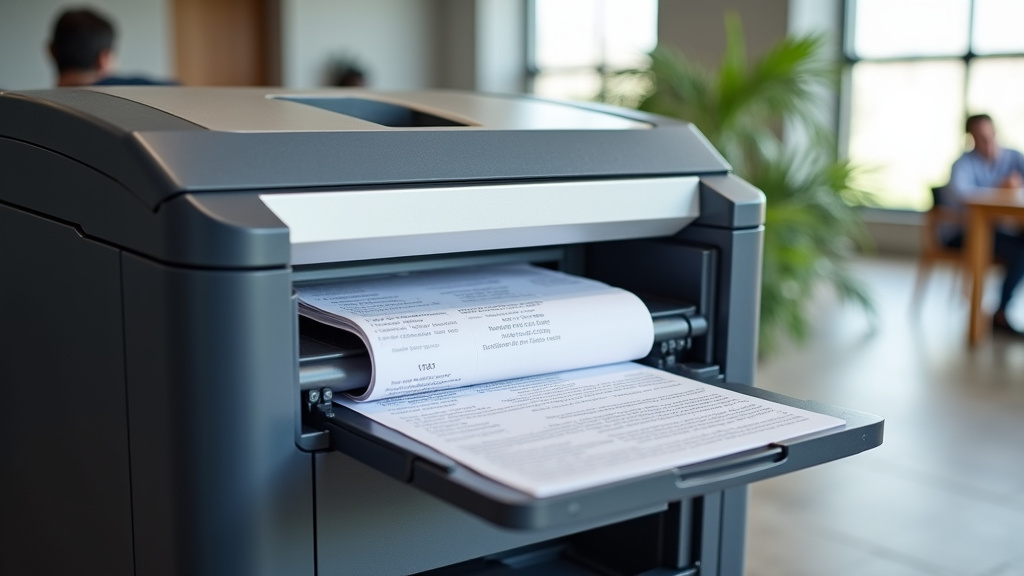
Like any machine with moving parts, document feeders can have issues. The most common one is a paper jam. But don’t panic. A few simple steps fix most problems.
Preventing Paper Jams
Paper jams are annoying, but you can prevent most of them. Always use clean, dry, unwrinkled paper. Fan your stack before loading to separate the pages. Don’t overload the feeder beyond its capacity. Follow the guide lines in the tray.
What to Do When It Jams
Turn off the printer first. Gently pull the paper in the direction of the rollers, not against it. Check for small torn bits. Most printers have clear instructions on a screen or in the manual. A quick cleanup usually gets you back in business.
Choosing a Document Feeder: Your Quick Checklist
Ready to pick a machine with a great document feeder? Use this simple list. It covers what matters most for everyday use.
- Check the Capacity: Can it hold at least 25-30 sheets for average tasks?
- Look at the Speed: Is it 20+ pages per minute for basic needs?
- Verify Duplexing: Does it scan both sides automatically? This saves huge time.
- Read Reviews for Jams: Do other users mention frequent paper jams?
- Consider Media Types: Can it handle cardstock or envelopes if you need that?
- Match It to Your Jobs: Do you mainly scan multi-page reports? A feeder is essential.
Maintaining Your Document Feeder for a Long Life
A little care goes a long way. Treat your feeder well, and it will work reliably for years. Maintenance isn’t complicated.
Regular Cleaning Routine
Dust and paper lint are the enemies. Once a month, wipe the rollers with a clean, dry cloth. You can use a slightly damp cloth for sticky residue. Always consult your printer’s manual for model-specific cleaning guides. Some have built-in cleaning cycles you can run.
Using the Right Paper
This is the simplest tip. Always use paper that is rated for your printer. Avoid very thick, very thin, or damp paper. Good quality paper means fewer jams and cleaner scans. It protects the feeder rollers from wearing out too fast.
Conclusion
A document feeder is the automated paper handler that saves you from the tedious work of scanning or copying pages one by one. It’s the time-saving feature on many scanners and multifunction printers that pulls in a stack and processes it automatically. You’ve learned that feeders are great for multi-page jobs, come in different types like ADFs, and require a bit of care to avoid jams.
Now, you can shop with confidence. Use the checklist to match a feeder’s capacity and speed to your actual needs. A little research on jam reviews goes a long way. Start by checking the document feeder specs on your next printer or scanner purchase to ensure it fits your daily workflow.
Frequently Asked Questions
Can I use a document feeder with my home printer?
Yes, many all-in-one printers for home use include a basic document feeder. Check the specifications for your specific model. It will usually be listed under features like “ADF” or “Automatic Document Feeder.” The capacity might be smaller than a business machine, but it handles everyday tasks well.
How do I stop my document feeder from jamming?
Preventing jams starts with your paper. Always use clean, dry, unwrinkled sheets that are the correct size for your machine. Fan the stack before loading to separate pages, and never overload the tray beyond its stated capacity. Regular cleaning of the rollers also helps.
Is a document feeder better than a flatbed scanner?
It’s not about better, but about the right tool for the job. A document feeder is superior for scanning stacks of loose pages quickly. A flatbed is necessary for books, fragile items, or objects that can’t be fed through a roller mechanism. Most people benefit from having both options.
What kind of paper can I use with a document feeder?
You should use standard paper types like letter, legal, or A4 that are rated for your printer. The feeder works best with paper that is in good condition—no tears, tape, or heavy staples. Some models can handle cardstock or envelopes, but you must check the manual for supported media types.
Are document feeders worth the extra cost?
If you regularly scan or copy more than a few pages at a time, yes. The time savings add up quickly and reduce manual effort. For occasional single-page scans, you might not need one. Consider your typical workload; a feeder is a worthwhile investment for anyone handling regular multi-page documents.