How Many Pages Can a Scanner Scan at Once?
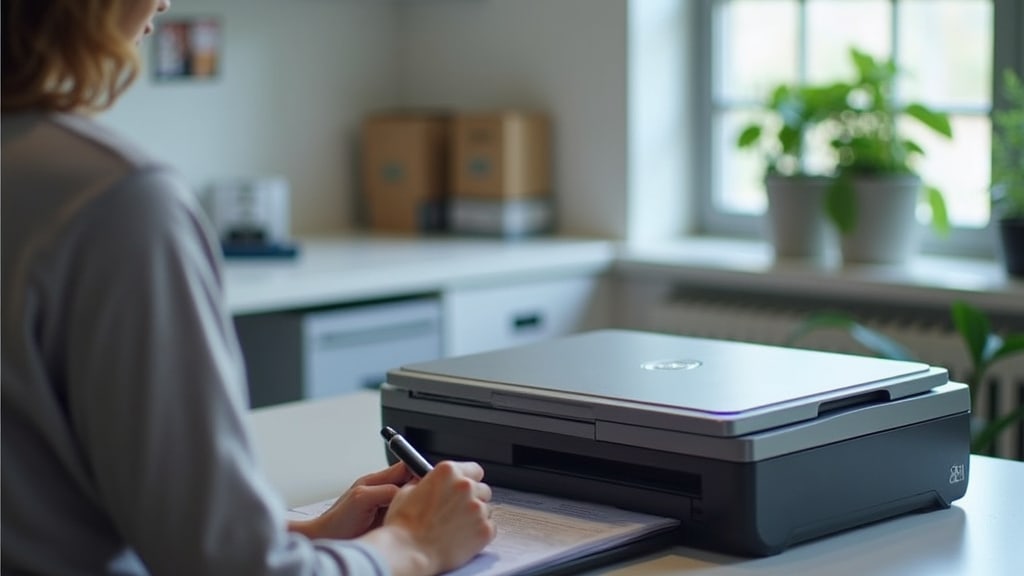
Understanding Scanner Page Capacity
Most modern scanners can handle **multiple pages at once**, but the exact number varies widely. It depends entirely on the type of scanner you own and the feature you’re using. Let’s break down what those numbers typically are and why.
For the vast majority of home and office scanners, the built-in **Automatic Document Feeder (ADF)** is the key feature. This is the tray where you stack your pages. A standard consumer ADF usually holds between **20 to 50 sheets** of paper. More robust office models can handle 50 to 100 sheets or even more.
The Deciding Factor: Your Scanner’s ADF
Think of the ADF as your scanner’s “to-do” pile. It pulls pages through one by one automatically. If your scanner doesn’t have an ADF, you can only scan **one page at a time** by placing it flat on the glass. That’s a completely different process.
Common ADF Capacity Ranges
We found that capacities generally fall into these categories:
- Home & Personal Scanners: Typically **20-30 sheets**. Perfect for occasional multi-page documents.
- Small Office Scanners: Often **30-50 sheets**. Designed for regular, light-duty batch scanning.
- Workgroup & Departmental Scanners: Usually **50-100 sheets**. Built for high-volume, daily use.
It’s important to note that this is the **maximum stack size**. The actual number of pages it can scan in one continuous job depends on other factors we’ll cover next.
What Else Affects Your Scan Job?
The ADF capacity is just the starting point. Your scanner’s internal memory and processing speed also play a big role. Here’s what can change the outcome.
Document Condition Matters
New, crisp paper feeds perfectly. But what about old, wrinkled, or delicate pages? You might need to feed fewer sheets to prevent jams. A scanner advertised for 50 sheets might realistically handle **30 sheets** of a crinkled old manuscript.
File Type and Resolution
Scanning to a simple PDF is faster and uses less memory than scanning to a high-resolution color TIFF file. If you choose the highest quality settings, the scanner’s memory might fill up, causing it to pause and transfer data before it can continue. Some scanners have a “scan to network folder” limit, too.
A Real-World Analogy
Imagine your scanner’s ADF is a coffee machine’s hopper for beans. It can hold a certain amount of beans. But the speed at which it can grind and brew depends on the coarseness setting (resolution) and how fast you can pour the coffee into your cup (transferring the file). A very fine grind (high-res TIFF) takes longer and might require you to refill the hopper (memory buffer) mid-process.
Scanner Types and Their Typical Capacities
Not all scanners are built the same. The intended use dramatically changes the page capacity. We summarized common specifications from manufacturers’ guides.
| Scanner Type | Typical ADF Capacity | Best For |
|---|---|---|
| Portable/Sheet-fed Scanner | 10-20 sheets | Travel, quick receipts, single reports |
| All-in-One Printer (Home) | 20-35 sheets | Family documents, school papers |
| Dedicated Document Scanner | 30-100 sheets | Home office digitizing projects, small business records |
| High-Volume Workgroup Scanner | 50-200+ sheets | Corporate departments, legal, medical offices |
As you can see, choosing a scanner for a large project means looking beyond just the ADF number. A “high-volume” scanner is engineered for the stress of back-to-back large jobs.
Can You Scan More Than the ADF Limit?
Yes, but not all at once in a single automatic stack. If you have a 200-page report and your scanner holds 50 sheets, you’ll need to run the job in batches. You simply let the first 50 scan, then load the next 50. The software will usually combine them into one file for you.
Some advanced scanners and software have a **”continuous scanning”** mode. This keeps the scanner ready while you quickly add the next stack, making the break between batches almost seamless.
A Quick Tip for Large Projects
When scanning a large stack, **don’t jam the feeder full**. Leave a little wiggle room. Tightly packed pages are more likely to stick together and cause a multi-feed (where two pages go through at once). Feed about 80% of the maximum capacity for the most reliable results.
Why Does My Scanner Stop Before the Tray is Empty?
You loaded 30 pages, but the scanner stopped at 25. This is usually a memory buffer issue. The scanner has scanned those 25 pages and is now waiting for the computer to “catch up” by saving the file. Give it a moment. The job will often resume automatically once the data is transferred.
This is more common when scanning at very high resolutions or to complex file formats. If it happens often, try scanning a slightly smaller batch or check if your scanner’s drivers and software are up to date.
Flatbed vs. ADF: Two Different Jobs
It’s crucial to remember: the page capacity only applies to the **ADF**. Using the flatbed glass is a **one-page-at-a-time** affair, no matter how big the scanner is. The flatbed is for books, fragile items, or single pages that won’t feed well.
Using Both Together
Many scanners let you create a mixed job. You might use the ADF for the main text of a document but then use the flatbed to scan a glossy photo or a bound page that goes in the middle. The scanner software will stitch it all together into one PDF.
How to Find Your Scanner’s Exact Capacity
The manufacturer’s number is your best guide. You can find it by:
- Checking the product page or box.
- Looking in the scanner’s settings menu under “ADF” or “Feeder Capacity.”
- Reading the quick-start guide or the full user manual online.
That stated number is the **maximum physical capacity**. For your daily use, plan on **scanning 80-90% of that number** for the smoothest experience.
Your Scanner Shopping Checklist
If you’re buying a scanner for batch jobs, here’s what to prioritize.
- ADF Capacity First: Match the tray size to your typical document length.
- Daily Duty Cycle: Check the “recommended pages per day” spec for reliability.
- Multi-Feed Detection: This feature automatically stops and alerts you if two pages feed at once.
- Duplex Scanning: Scans both sides of the page in one pass, effectively doubling your speed for two-sided documents.
- Driver & Software Quality: Good software makes batch scanning and file management much easier.
By focusing on these points, you’ll choose a scanner that fits not just the number of pages, but the rhythm of your work.
Conclusion
Understanding your scanner’s page capacity starts with the Automatic Document Feeder (ADF). Remember, the tray size is just a guideline—real-world factors like paper condition and file settings will affect how many pages you can scan smoothly. For home projects, 20-30 sheets is common, while office scanners handle more. To get the best results, scan in batches using about 80% of the maximum capacity to avoid jams. Your next step is simple: check your scanner’s manual or product page for its exact ADF limit. If you’re shopping for a new scanner, use our checklist to match the capacity to your daily tasks.
Frequently Asked Questions
How do I find my scanner’s exact ADF capacity?
You can find this information on the manufacturer’s website, product box, or in the scanner’s settings menu under “ADF” or “Feeder Capacity.” The user manual, often available online, will list the maximum sheet count. It’s a quick check that helps you plan your scan jobs.
Why does my scanner sometimes feed two pages at once?
This is called a multi-feed, which often happens with thin, static-charged, or wrinkled paper. To prevent it, ensure pages are clean and not too tightly packed. Using a scanner with multi-feed detection can automatically pause and alert you to this issue.
Can I scan documents of different sizes together in the ADF?
It’s best to scan pages of the same size in one batch. Mixing sizes can cause jams or uneven feeding. If you must combine them, use a scanner with adjustable paper guides, but test a few pages first to ensure smooth operation.
Does scanning to a network folder limit how many pages I can scan?
Yes, if your network connection is slow or the scanner has a file size limit, it might pause to transfer data. Scanning directly to a USB drive or your computer’s hard drive can often handle larger batches without interruptions.
How can I speed up scanning a large stack of pages?
Choose a lower resolution or a simpler file format like PDF instead of TIFF. Ensure your scanner’s drivers are updated for optimal performance. Using duplex scanning for two-sided documents also cuts the time in half by capturing both sides in one pass.