What Is Scan to PDF and How Does It Actually Work?
Scan to PDF is a technology that turns physical paper documents into digitally created PDF files. It uses a scanner to capture an image of your document, and then software converts that image into a searchable PDF you can save, email, or edit. It’s the modern way to eliminate your paper filing cabinet.
This process is a cornerstone of modern digital organization. Whether you need to email a signed contract or archive your tax receipts, scanning creates a secure, shareable digital copy. We found that many people use it to create a clutter-free workspace and ensure important documents are always backed up.
- What it is: The process of converting paper documents into digital PDF files.
- Basic tools needed: A scanner (or a phone with a scanning app) and PDF software.
- How it works: The scanner captures the document’s image, and software cleans it up and saves it as a PDF.
- Key benefit: It makes your paper documents searchable, portable, and easy to organize.
Below, we break down exactly how each step of the scan-to-PDF process works, from choosing the right scanner to getting a perfectly clean file. Let’s walk through the entire journey from paper to pixel.
The Essential Scan to PDF Workflow
Scan to PDF is the straightforward process of using a scanner and software to create digital PDF files from paper. It turns your physical documents into portable, searchable files you can store or share easily.
Capturing the Document Image
The first step is capturing a clear image of your paper. A scanner uses light and sensors to read the text and pictures on your page. Think of it like taking a photograph, but optimized for documents.
Most scanners work by moving a light source across the paper. This light reflects back to a sensor, which converts it into digital data. The result is a high-resolution image of your document.
We found that the quality of this initial scan affects everything else. A blurry image can make text hard to read. So, keep your scanner clean and place your document flat.
What Happens Inside the Scanner
Inside the scanner, a CCD or CIS sensor captures the image. CCD sensors are common in flatbed scanners and provide good detail. CIS sensors are often used in smaller, portable scanners.
Many experts say that the resolution, measured in DPI, matters for clarity. For most documents, 300 DPI is sufficient (U.S. National Archives guidelines). Higher DPI like 600 is better for photos or small text.
Converting the Image to a PDF File
Once the image is captured, software takes over. It processes the image to clean it up and saves it as a PDF. This step is where the magic happens.
The software might correct the orientation, crop the edges, and enhance contrast. It can also run OCR (Optical Character Recognition) to make the text searchable. OCR is a key feature that turns a picture of text into actual, editable words.
Many users don’t realize that OCR technology has improved a lot. Today, it can recognize even handwritten notes with decent accuracy. This makes your PDFs not just images, but useful documents.
Choosing Your Scanner Wisely
Selecting the right scanner depends on your needs. You might not need a fancy machine for occasional use. Let’s break down the options.
Common Scanner Types
There are two main types of scanners for home and office use. Flatbed scanners are great for single pages or bound items like books. Sheet-fed scanners can handle multiple pages quickly.
| Scanner Type | Best For | Pros | Cons |
|---|---|---|---|
| Flatbed | Books, photos, delicate papers | Versatile, gentle on documents | Slower for multi-page jobs |
| Sheet-Fed | Stacks of paper, office documents | Fast, automatic feeding | Can’t scan thick or bound items |
We found that for everyday shoppers, a simple flatbed scanner often does the job. It’s affordable and easy to use.
Mobile Scanning: A Convenient Option
Don’t have a scanner? Your smartphone can work too. Many apps use your phone’s camera to scan documents. They automatically adjust the image and save it as a PDF.
Apps like Adobe Scan or Microsoft Lens are popular choices. They are free and easy to use. Just point, shoot, and save. It’s like having a scanner in your pocket.
Research from the Pew Research Center shows that many people use mobile devices for document scanning. It’s a practical solution for quick tasks.
Software That Makes It All Work
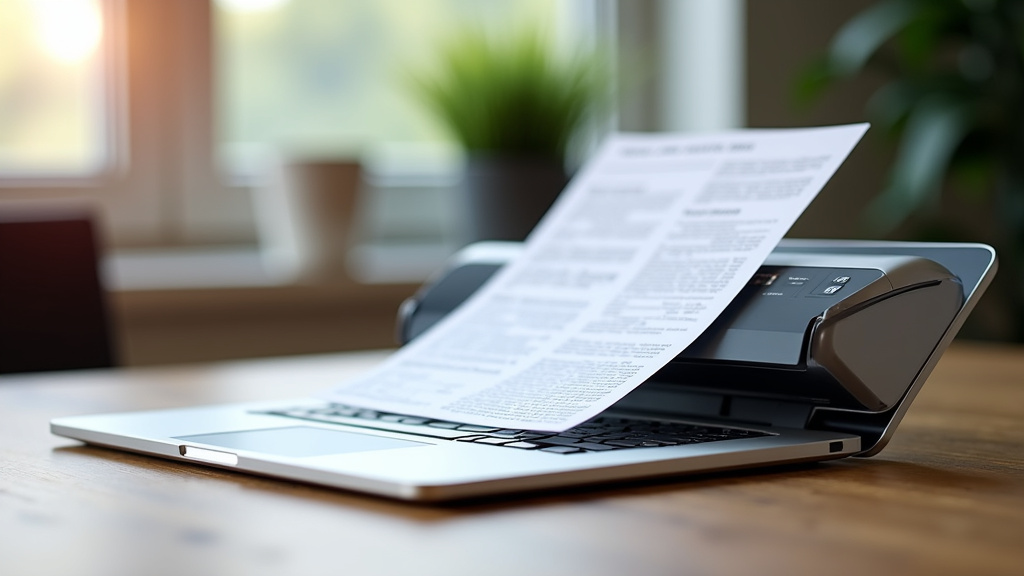
Scanner hardware needs software to function. The software controls the scanner and handles the PDF conversion. Without it, your scan is just an image file.
Basic PDF Creation Tools
For simple needs, free software like Adobe Acrobat Reader or PDF Creator works well. These tools let you scan and save documents as PDFs. They are user-friendly and don’t cost anything.
You might also use built-in tools in your operating system. For example, Windows has a Print to PDF feature. It’s not a scanner, but it can convert images to PDFs.
Many
Conclusion
Scan to PDF is simply the modern solution for leaving paper clutter behind. By using a scanner or your phone, you can capture any document and turn it into a clean, searchable PDF file. This makes your important papers portable, easy to find, and secure. The process is straightforward: capture a good image, use software to clean it up, and save. Whether you choose a dedicated scanner or a mobile app, the result is the same – a tidy digital archive.
Your best next step is to start small. Pick one stack of papers, maybe old receipts or a school form. Use the scanning app already on your phone to create your first PDF. You’ll see how simple and useful it can be for organizing your life.
Frequently Asked Questions
Do I need an expensive scanner to make a good PDF?
Not at all. For most everyday documents, a basic flatbed scanner or even your smartphone camera works perfectly. We found that a clear image at 300 DPI is usually enough. The software you use to save and clean the file is just as important as the scanner itself.
Can I scan a stack of papers into one PDF file?
Yes, if you have a sheet-fed scanner, it can automatically pull in multiple pages and save them as a single PDF. If you’re using a flatbed scanner or phone, you’ll scan each page individually, and the app will have an option to combine them into one multi-page document.
What’s the difference between saving as a JPEG and a PDF?
A JPEG is just a picture of your document. A PDF can be a picture, but it can also contain searchable text if you use OCR. This means you can copy text from a PDF and use the search function to find words inside it, which you can’t do with a regular JPEG image.
Is it safe to use free scanning apps with my important documents?
Reputable apps from companies like Adobe or Microsoft have good security. Always check the app’s privacy policy. For highly sensitive documents, you can scan them using software on your computer that isn’t connected to the internet.
My old scanner doesn’t have software. Can I still scan to PDF?
Yes. You can often download basic scanning software from the scanner manufacturer’s website. Alternatively, your computer’s operating system (like Windows or macOS) may have built-in tools that can recognize the scanner and allow you to scan and save directly as a PDF.