Does a Document Scanner Need a Computer?
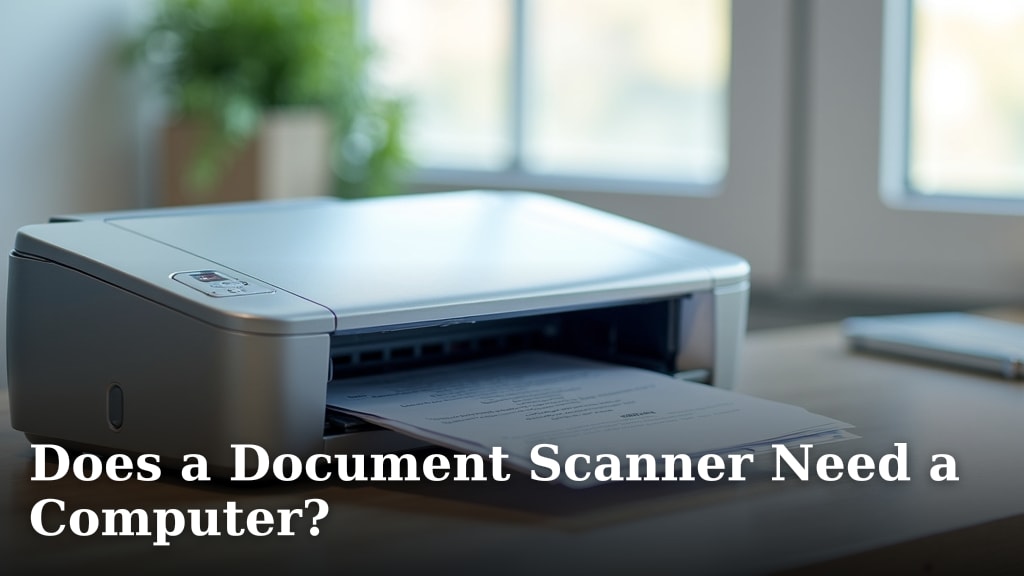
No, not all document scanners need a computer to function. Many modern scanners can save scans directly to a USB drive or a cloud service without connecting to a PC. This makes them great for busy people who want quick, standalone scanning.
This ability to work independently is a big step up from older scanning technology. You might remember needing a bulky computer setup just to digitize a single page. Today’s scanners offer more flexibility and convenience. We found that many shoppers prefer this simpler approach.
TL;DR:
- Most new scanners don’t need a computer.
- They can save scans to USB or cloud.
- This offers great convenience for users.
- It’s a big improvement over older tech.
Let’s walk through exactly how these standalone scanners work and what you should look for. If you’re looking for a computer-free option, consider a scanning app for your phone.
Standalone Document Scanners: Do You Really Need a Computer?
So, you’re thinking about getting a document scanner. That’s a smart move to get your papers organized! A big question on many shoppers’ minds is whether they still need a computer to make it all work. The good news is, you often don’t. Many modern scanners are designed to be completely independent of a PC. They can scan documents and save them directly to other places. This makes scanning much more convenient for everyone.
Think of it like a modern coffee maker. You don’t need a separate computer to brew your morning cup, right? It does its job all on its own. Document scanners are becoming like that. They offer a simpler way to digitize your important papers without the hassle of booting up a computer.
How Standalone Scanners Work Without a PC
The magic behind a computer-free scanner is its built-in processing power and storage options. These devices have their own small computer chips inside. They handle the scanning process from start to finish. You just feed your document in, and the scanner does the rest. It’s like having a mini-office in a box.
Saving Your Scans: Where Do They Go?
The most common ways these scanners save your files are through direct-to-storage options. This means the scanner can send your digitized documents to a place you can access easily. We found that most users find these methods very straightforward. Here are the primary ways your scans can be saved:
Saving to a USB Drive
Many scanners come with a USB port. You simply plug in a standard USB flash drive. After scanning, you can choose to save the file directly onto that drive. It’s incredibly simple. You just eject the USB drive when you’re done and plug it into any computer to view, edit, or share your scanned documents. This is a big reason why many people choose this type of scanner.
Saving to Cloud Services
Another popular feature is direct saving to cloud storage. Services like Google Drive, Dropbox, or OneDrive can be linked to your scanner. After setting this up, your scans are sent straight to your cloud account. This is fantastic for accessibility. You can get to your documents from any device, anywhere with an internet connection. It also acts as an automatic backup, which is a huge plus. We found this feature is especially popular with small businesses.
Saving to an SD Card
Some scanners, particularly portable or smaller models, might use an SD card slot. Similar to USB drives, you insert an SD card and save your scans there. This is common in devices designed for mobility. You can then transfer the card to a computer or a compatible device.
Scanners with Built-in Memory
Occasionally, you’ll find scanners with internal memory. These devices can store scans directly on the scanner itself. You’d then connect the scanner to your computer later via USB to transfer the files. It’s a bit like using an old digital camera. While less common for saving permanently, it can be useful for temporary storage.
What to Look for in a Standalone Scanner
If you’re aiming for a scanner that doesn’t need a computer, there are a few key features to keep your eyes peeled for. You want a device that makes your life easier, not harder. We researched what shoppers find most important.
Direct Save Options
Make sure the scanner explicitly states it can save directly to USB or a cloud service. Don’t assume; check the product description or specifications. If it mentions “scan to USB,” “scan to cloud,” or has icons for these functions, you’re on the right track.
Connectivity Features
Look for scanners with built-in Wi-Fi or Ethernet ports if you plan to use cloud saving. This allows the scanner to connect to your network. Some scanners even have wireless direct features, letting them connect to your devices without a router. This can simplify setup quite a bit.
Control Panel and Display
A scanner with a user-friendly control panel and a clear display screen makes standalone operation much easier. You’ll use this to select scan settings, choose a destination (like your USB drive or cloud account), and start the scan. If the interface is complicated, it defeats the purpose of not needing a computer.
Software and Setup
Even standalone scanners might require an initial setup using a computer or mobile app. For example, linking to cloud services often needs an app. We found that most modern scanners make this one-time setup process quite simple. Look for scanners that offer easy mobile app setup if you want to minimize computer use as much as possible.
Types of Scanners That Can Work Standalone
Not all scanners are built the same. Some types are more naturally suited for standalone operation than others. Understanding these differences can help you pick the right device for your needs.
Portable Scanners
These are designed for on-the-go use. Many portable scanners are battery-powered. They often have slots for SD cards or USB drives, allowing you to scan documents anywhere. They are usually compact and lightweight, making them easy to carry around.
Sheet-Fed Scanners
These are common for office use. Many sheet-fed scanners can scan stacks of documents. Look for models that specifically advertise Many sheet-fed scanners offer standalone capabilities, making them ideal for office use.“scan to USB” or direct cloud integration. They often have a small screen and buttons to control the scanning process without needing a PC.
All-in-One (AIO) Printers with Scanning
While AIO printers have many functions, their scanning capabilities can vary. Some higher-end AIOs offer direct scanning to USB or cloud. You’ll need to check the specific model’s features. Others might still require you to use an app or computer software to access scans.
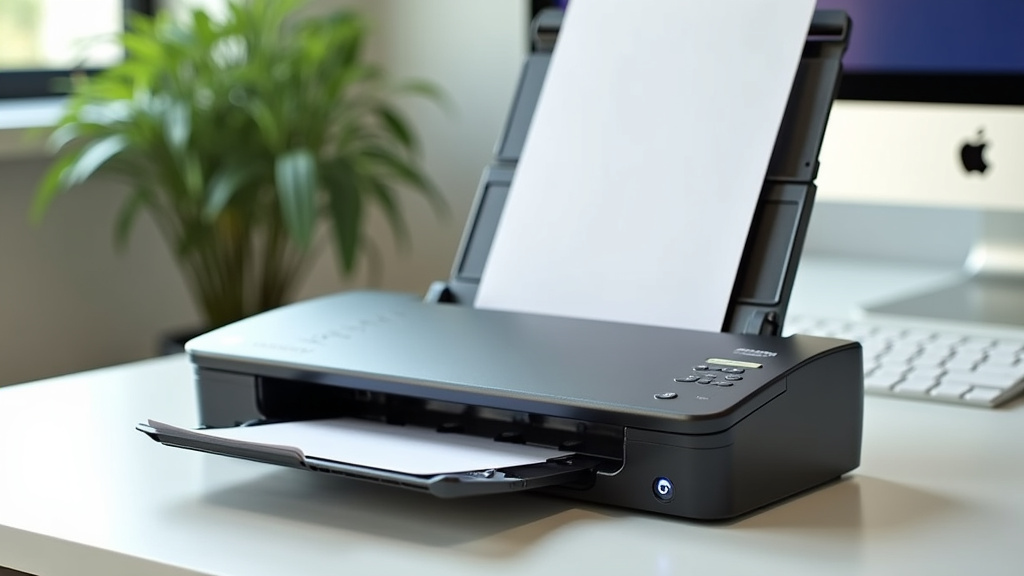
Standalone Scanning vs. Computer-Connected Scanning
Let’s break down why you might choose a standalone scanner over one that strictly needs a computer. It really comes down to convenience and speed for your specific tasks.
Speed and Efficiency
Scanning directly from a standalone device is usually much faster. You avoid the time it takes to boot up a computer, open software, and then initiate the scan. For busy individuals or small offices needing quick document digitization, this time saving is significant. Think about needing to scan a single receipt; a standalone scanner does it in seconds.
Simplicity and Ease of Use
For users who aren’t very tech-savvy, a scanner that works independently is much simpler. There’s less software to install and fewer steps to follow. The interface is often designed for direct operation. You feed the paper, press a button, and the scan is saved. This reduces frustration and makes document management more accessible.
Space and Portability
Standalone scanners can save you desk space. You don’t need to dedicate room for a computer that’s solely used for scanning. Portable models are, of course, great for travel or remote work. They offer full scanning functionality without needing a fixed setup.
Cost Considerations
While not always the case, some standalone scanners can be more affordable than models that require complex software or integration with a high-powered computer. You’re paying for the core scanning function and its direct output methods.
Your Standalone Scanning Checklist
Ready to find the perfect scanner that ditches the computer? Here’s a quick checklist to guide your shopping:
- Does it have a USB port for saving scans?
- Does it offer direct cloud saving (e.g., Google Drive, Dropbox)?
- Is there a clear, easy-to-use display and control panel?
- Can it scan to an SD card or does it have internal memory?
- Is there a mobile app for simple setup and management?
- Does the product description confirm standalone operation without a PC?
By focusing on these points, you can find a scanner that truly works for you, no computer required. It’s all about making your document scanning process as smooth and simple as possible.
Conclusion
You now know that many modern document scanners work perfectly without a computer. We’ve seen how they can save scans directly to USB drives or cloud services. This offers a simpler, faster way to digitize your important papers. You can easily find a scanner with the direct save options and user-friendly controls you need. Your next step is to use the checklist we provided to pick a scanner that fits your lifestyle. Get ready to streamline your document management with a scanner that’s ready to go!
Frequently Asked Questions
Can I scan photos without a computer?
Yes, many scanners designed for documents can also scan photos. Look for models that specifically mention photo scanning quality and have direct save options like USB or cloud. You’ll still want to check the scanner’s resolution capabilities for best results.
What happens if my standalone scanner runs out of memory?
If your scanner has built-in memory, you’ll need to transfer files to a computer or another storage device before it fills up. If it saves directly to a USB drive or SD card, you just need to ensure that storage medium has enough space. Always keep a spare USB drive handy.
Do I need an internet connection for cloud scanning?
Yes, you will need an active internet connection for your scanner to send files to cloud storage services. The scanner itself connects to your network (usually via Wi-Fi) to upload the scanned documents to your chosen cloud account.
Are standalone scanners easy to set up?
Generally, yes. While some might require an initial setup with a computer or mobile app to connect to Wi-Fi or cloud services, the ongoing scanning process is designed to be simple. Most have intuitive control panels for easy operation.
Can I edit my scans if I don’t use a computer?
Direct editing isn’t typically done on the scanner itself. If you scan to a USB drive, you’ll use a computer to edit. If you scan to the cloud, you can often access editing tools through the cloud service’s app or website.