What to Look for in a Document Scanner? And What It Means
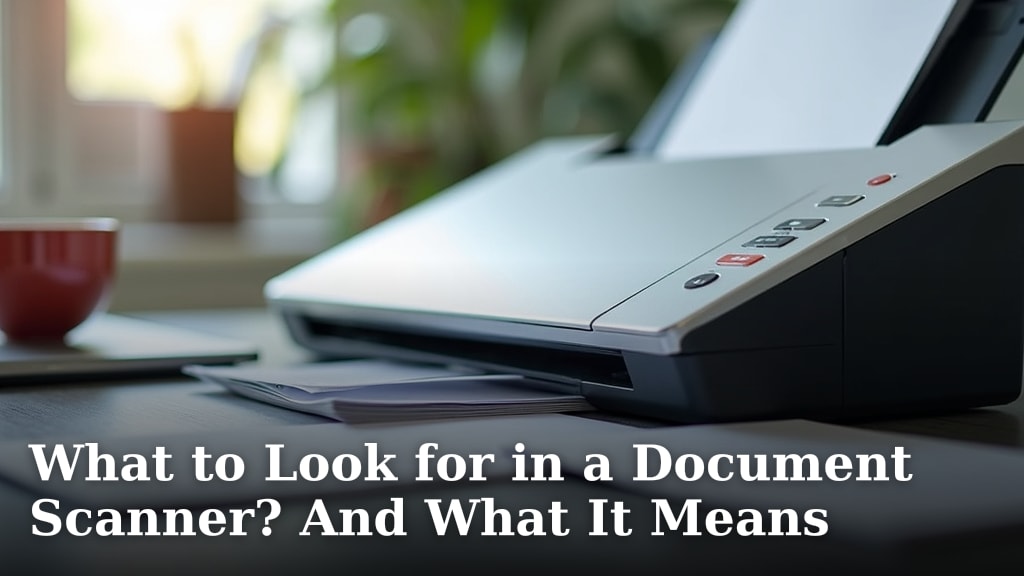
When looking for a document scanner, you should focus on its speed, resolution, and ease of use. These features determine how efficiently and accurately it can turn your paper documents into digital files. A good scanner makes managing your paperwork simple and fast.
Think about what types of documents you’ll be scanning. Do you need to handle large blueprints or just standard letters? Considering document size, automatic feeders, and software capabilities will help you choose the right one. Many scanners also offer cloud connectivity for easy sharing.
- Speed: How fast it scans pages.
- Resolution: How clear the digital image will be.
- Ease of use: How simple it is to operate.
- Feeder type: For single sheets or stacks.
- Software: Features for organizing and editing.
Let’s break down what these key features mean for you and how to pick the best document scanner for your needs.
Choosing the Right Document Scanner: What to Look For
Finding the perfect document scanner can feel overwhelming. You’re not just buying a gadget. You’re investing in a tool to organize your life. We’ve researched what makes a scanner great for everyday users. Focus on these key areas to make a smart choice.
Speed: How Fast Can It Go?
Think about how many pages you need to scan regularly. If it’s just a few receipts, speed might not matter much. But if you have stacks of bills or important documents, you’ll want a scanner that works quickly. This feature is usually measured in pages per minute (PPM).
Understanding Pages Per Minute (PPM)
A higher PPM means the scanner can process more pages in a minute. This can save you a lot of time. Imagine scanning a 50-page report. A 20 PPM scanner will take about 2.5 minutes. A 50 PPM scanner could do it in just 1 minute. That’s a big difference if you’re doing this often.
What Speed is Right for You?
For home users with light scanning needs, 20-30 PPM might be plenty. If you’re running a small business or need to digitize a large archive, look for 40 PPM or higher. Consider that PPM can vary based on resolution and color settings. Always check the scanner’s specifications for realistic speeds.
Resolution: Clarity is Key
Resolution tells you how much detail the scanner can capture. It’s measured in dots per inch (DPI). A higher DPI means a clearer, sharper image. This is especially important if you’re scanning photos or documents with fine print.
Choosing the Right DPI
For most documents, like letters or bills, 300 DPI is usually sufficient. This offers good clarity without making your digital files too large. If you plan to enlarge scanned images or archive old photos, consider 600 DPI or higher. Higher DPI means larger file sizes, so balance quality with storage needs.
Optical vs. Interpolated Resolution
Pay attention to “optical resolution.” This is the scanner’s true scanning capability. “Interpolated resolution” is software-enhanced and not as accurate. Always prioritize a scanner with a high optical resolution for the best results. Many experts recommend at least 600 DPI optical for versatile use (CompTIA).
Ease of Use: Simple and Straightforward
The best scanner is one you’ll actually use. Look for controls that are intuitive and easy to understand. Software should be user-friendly, not overly complicated.
One-Touch Scanning
Many scanners offer one-touch buttons. You can program these buttons to perform specific tasks. For example, a button could scan directly to a specific folder on your computer or send a document to email. This makes repetitive tasks much faster and simpler.
Software Features That Matter
The bundled software is just as important as the hardware. Good software can automatically straighten pages, remove blank pages, and even convert scanned documents into searchable text (OCR). This makes finding and editing your digital files much easier. Think about how you want to organize your scans. Do you need to label files? Search by date? These software features can make a big difference.
Feeder Type: Handling Your Documents
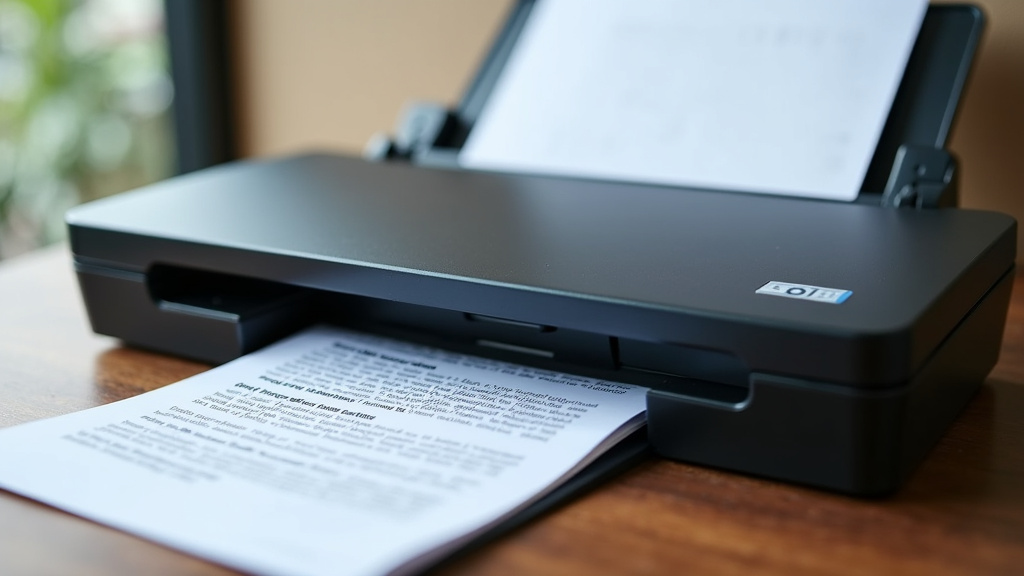
How the scanner handles your paper is a major factor. Scanners typically come with either a flatbed or an automatic document feeder (ADF), or both.
Flatbed Scanners
A flatbed scanner is like a photocopier. You place a single document face down on the glass. These are great for delicate items, thick books, or irregular shapes. They offer excellent scan quality but are slower for multiple pages.
Automatic Document Feeders (ADF)
An ADF lets you load a stack of papers. The scanner then feeds them through one by one. This is a huge time-saver for scanning multi-page documents. Most ADFs can handle standard letter and legal-sized paper. Some advanced models can also scan both sides of a page at once (duplex scanning).
Duplex Scanning: Double the Efficiency
Duplex scanning means the scanner can capture both sides of a page in a single pass. This is incredibly useful for double-sided documents like contracts or invoices. It effectively doubles your scanning speed for such items. It also means you don’t have to manually flip pages. Many modern ADF scanners offer this feature.
Capacity of the ADF
Check how many pages the ADF can hold. For typical home use, 20-50 sheets might be enough. If you’re scanning large volumes, look for models that can hold 100 sheets or more. A higher capacity feeder means fewer interruptions during large scanning jobs.
Connectivity and Software: Beyond Basic Scanning
Modern scanners offer more than just a way to digitize paper. They can connect to your devices and the cloud.
USB vs. Network Connectivity
Most scanners connect via USB to a single computer. If multiple people need to access the scanner, consider a network-enabled model. These can connect to your home or office network, allowing many users to scan wirelessly. Wi-Fi connectivity is also common, offering more flexibility in placement.
Cloud Scanning and Integration
Many scanners now offer direct integration with cloud services like Google Drive, Dropbox, or OneDrive. You can scan documents and send them straight to your preferred cloud storage. This is fantastic for backup and sharing. Some even scan directly to mobile devices via an app. This makes digitizing on the go much easier.
What Does It All Mean for You? A Quick Checklist
To help you decide, think about these questions. They’ll guide you toward the scanner that fits your life best.
- Do you scan mostly single pages or multi-page documents?
- How many pages do you typically scan in one sitting?
- Do you need to scan photos or just text documents?
- How important is it for digital files to be searchable?
- Where will you store your scanned documents? (Computer, cloud, etc.)
- Do you need to scan fragile or odd-shaped items?
By considering speed, resolution, ease of use, feeder type, and connectivity, you can find a document scanner that truly helps you manage your paperwork. It’s about finding the right balance for your specific needs, turning that pile of paper into organized digital files.
Conclusion
You’ve learned that choosing a document scanner comes down to understanding your specific needs. Prioritize speed (PPM) for busy workflows and resolution (DPI) for image clarity, especially for photos. Look for ease of use with intuitive controls and helpful software features like OCR. Consider the feeder type – flatbed for delicate items or ADF for stacks, and think about duplex scanning for efficiency. Finally, connectivity options like cloud integration can simplify storage and sharing. Take a moment to answer those key questions we outlined, and you’ll be well on your way to finding a scanner that makes organizing your paperwork a breeze.
Frequently Asked Questions
How do I know if I need an Automatic Document Feeder (ADF)?
If you often scan documents with multiple pages, an ADF is a huge time-saver. It lets you load a stack of papers and scans them automatically, unlike a flatbed that requires you to scan each page individually.
What’s the difference between optical and interpolated resolution?
Optical resolution is the scanner’s true ability to capture detail. Interpolated resolution is enhanced by software and isn’t as sharp. Always look for a high optical resolution for the best scan quality.
Is OCR software really necessary for document scanning?
OCR (Optical Character Recognition) software is very helpful if you need to make your scanned documents searchable or editable. It converts scanned images into text, allowing you to copy, paste, and search within your documents.
Can I use a document scanner with my smartphone or tablet?
Many modern scanners offer Wi-Fi or mobile app integration. This allows you to scan documents directly to your smartphone or tablet for easy access and sharing on the go.
What PPM speed is good for a home office?
For most home office needs, a scanner with 20-30 PPM is usually sufficient for everyday documents like bills and letters. If you handle larger volumes, consider 40 PPM or higher.